Archive / NO.009 · AI Agent · Memory · Hermes · LLM Wiki · Knowledge Graph
I Turned All My Chats with Hermes into a Second-Brain Graph
After half a year with Hermes, it remembered more and more, and I still couldn't see any of it. So I used an LLM wiki plus a knowledge graph to draw that memory, kept it at home, and made it something I can browse on my phone.
CONTENTS 07
An agent's memory keeps growing, and I've never been able to see what it has grown into. This is how I drew it.
At a glance
I started using Hermes at the beginning of this year, and the chats piled up. Following Karpathy's LLM wiki idea, I had an AI turn those chats into interlinked Markdown pages, then wrote a small tool, second-brain-graph, that turns those pages into a 3D knowledge graph. Open any node and you can keep talking to Hermes with that node's context attached. The whole thing runs on a small computer at home. I talk to it on Telegram, and I look at the graph from my phone and my work computer over Tailscale.
In the previous essay, "One Person, One Agent," I wrote that a long-lived agent has to have a memory of its own. After I finished it, I looked back at my own Hermes and found a slightly awkward problem.
I started using it at the beginning of this year. It's been about half a year. Every day I talk to it on Telegram — about projects, about essays, about new things I've seen. It really has remembered a lot. Sometimes I mention something in passing and it picks up a thread from months ago.
But what it has actually remembered, and what shape that memory has taken, I had no idea. The memory was slowly getting bigger somewhere I couldn't see.
It worked. I just didn't feel sure about it.
From Chat Logs to an LLM Wiki
The easiest way to keep a memory is to store every chat log and search it when you need something. I've used that. The problem is that chat logs themselves are a mess. One idea is often scattered across several conversations, with tangents and filler in between, and what search returns is still hard to read.
Karpathy described an approach called LLM Wiki, and I've been using it since: don't pile up chat logs. Let the LLM turn the conversations into Markdown, page by page, one concept per page, with links pointing between pages. Over time it becomes a personal wiki that an AI writes and maintains for you.
That's what I do inside Hermes. My wiki lives at ~/wiki (the directory is configurable; second-brain-graph reads ~/.hermes/llm-wiki by default), one file per concept. I don't do the organizing. The AI does. How to have OpenClaw or Claude Code maintain a knowledge base automatically is written up on its own in the second-brain repo.
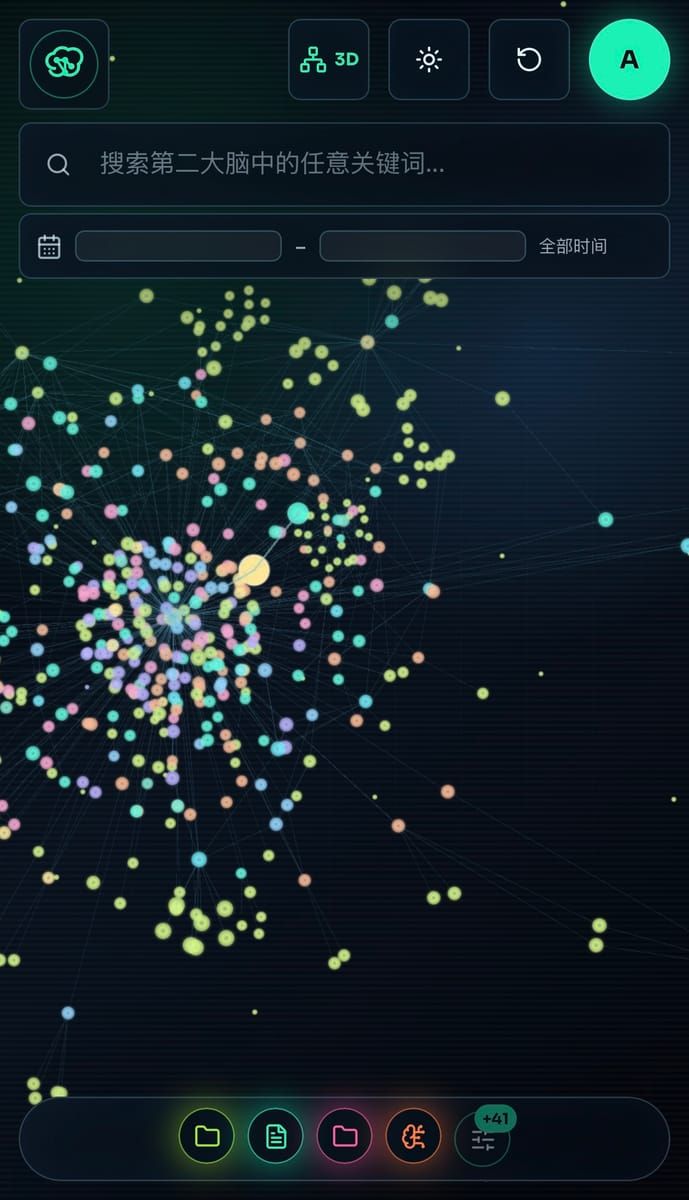
The wiki solved the "remembered, but messy" problem. It was still a pile of files. I could open any page, and I still couldn't see the whole.
Why Make It a Graph
Lists and search have a flaw: they can only find what you already know you're looking for.
What I want to know is usually a different kind of question. Which concepts keep showing up together? Which topic have I actually talked about many times without noticing? Where do two things I thought were unrelated connect? You won't get those by flipping through files.
So I wrote second-brain-graph. The method is straightforward: every concept in the wiki is a node, and the links and explicit relations between pages are the edges. Open it and it's a graph. You can turn it in 3D, or switch to a flat 2D layout.
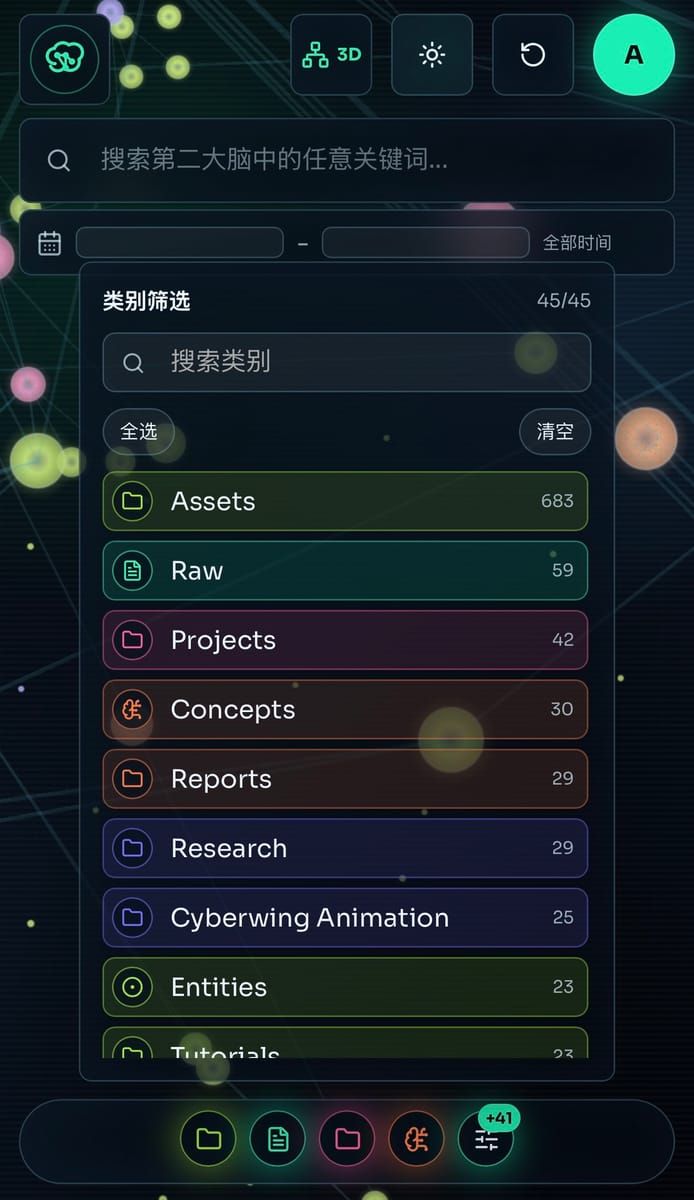
Open the category filter and you can see the scale. Assets alone has more than six hundred. Projects, Concepts, and Research each have several dozen. More than forty categories in all. The first time I opened the full graph, I stared at it for a long while. Some regions are dense — things I keep coming back to. Some nodes hang off to the side on their own, and I had forgotten I ever talked about them.
The tool itself isn't complicated. The frontend is a single-file React app, about 2,100 lines, built with Vite. 3D uses Three.js. 2D uses Canvas. The backend is a small service that uses only Node's built-in modules, with nothing else installed. The interface has a node detail panel, category filters, and search. Enough to use.
Digging Into a Node
Looking at the graph isn't enough. When I see a node, I usually want to ask something next.
Open a node and its details are on the right, with the chat box underneath. Ask Hermes then, and it answers with that node's context attached. The answer comes back as a stream. You pin the topic to one point, then dig down from there.
Each node's conversation is saved on its own. The next time you open the same node, wherever you left off is still there.
When the chat turns up something new, you can hit "Save to Wiki" and write that insight back into the wiki. When the wiki changes, the graph changes with it. A new node might show up, or a few new edges.
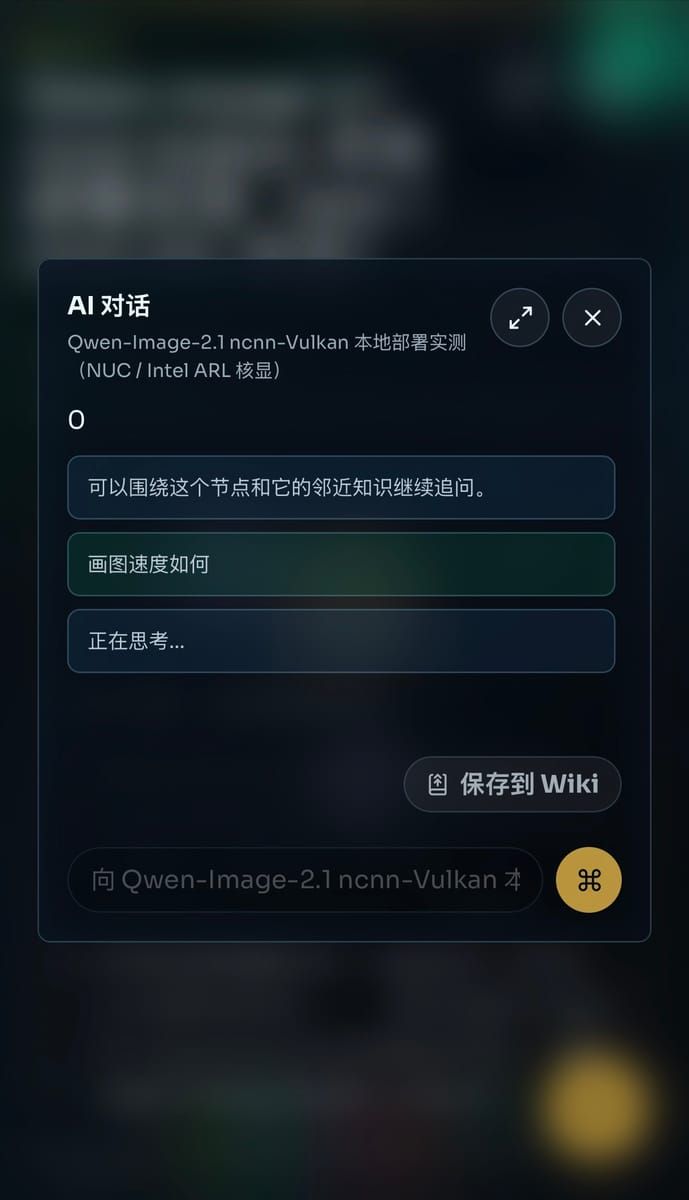
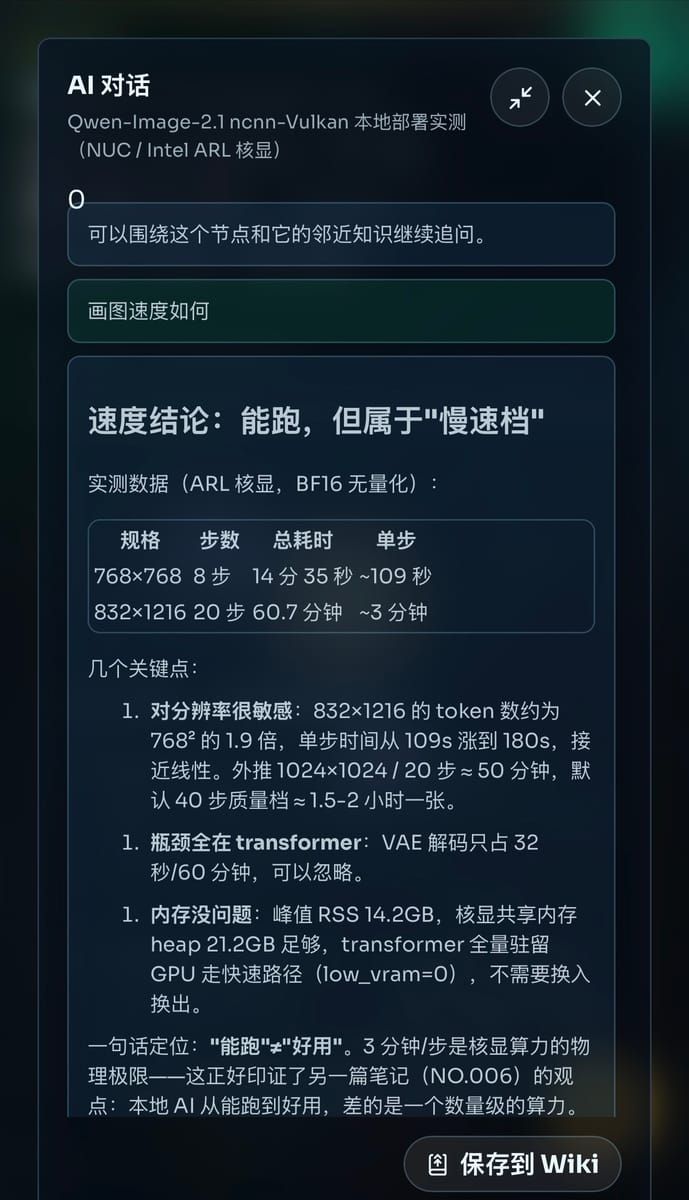
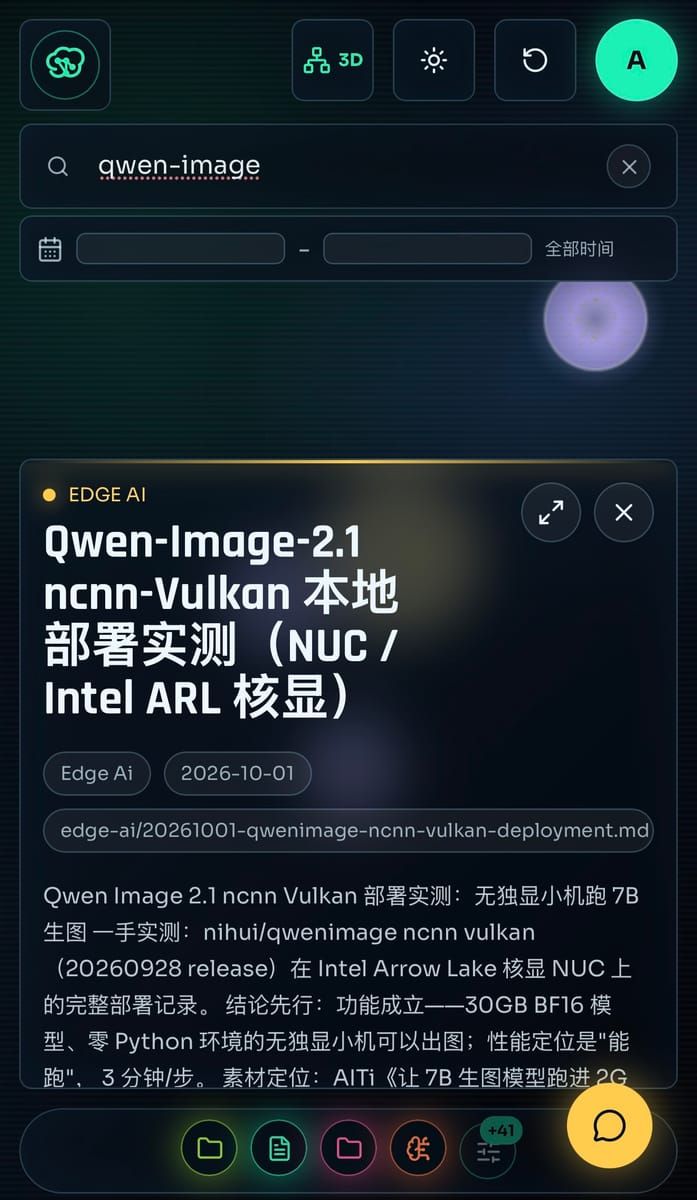
Here's one of my own. I opened the node "Qwen-Image-2.1 ncnn-Vulkan local deployment, hands-on" and asked, "How fast does it draw?" Hermes answered with that node's context: it runs, but it's in the slow tier — 832×1216, 20 steps, about an hour, roughly three minutes a step. The bottleneck is the Transformer, not video memory. It also picked up a judgment from another note: for local AI to go from "it runs" to "it's good to use," compute is still short by an order of magnitude. After the chat, hit "Save to Wiki" at the lower right and that conclusion is written back into the wiki. The graph updates with it.
A Few Design Tradeoffs
The wiki is read-only by default. In the whole tool, only the "Save to Wiki" button writes a file. Everything else is read-only. I can talk with Hermes on a node as freely as I want. If the chat goes wrong, or wanders off, it doesn't pollute the memory. What is actually worth keeping, I save with one click.
I've thought about this a lot. Letting an AI organize memory automatically is convenient. Letting it change my memory when I don't know about it makes me uneasy. I want the write-back step to stay in my hands.
The graph follows the files, live. The server watches the wiki directory. As soon as a file changes, it pushes the update to the page over SSE. While Hermes is organizing the wiki in the background, nodes appear on the graph and connect on their own. The graph is drawn as far as the memory has grown.
Local first. By default it only listens on 127.0.0.1:3030. It is not exposed. There are a few ways to run it: a Node process directly, Docker, or behind nginx. I also made an offline product mode that bundles Hermes with it and can produce a Windows installer, for people who don't want to tinker.
One Small Computer at Home, Three Ways In
Here's how I actually use it.
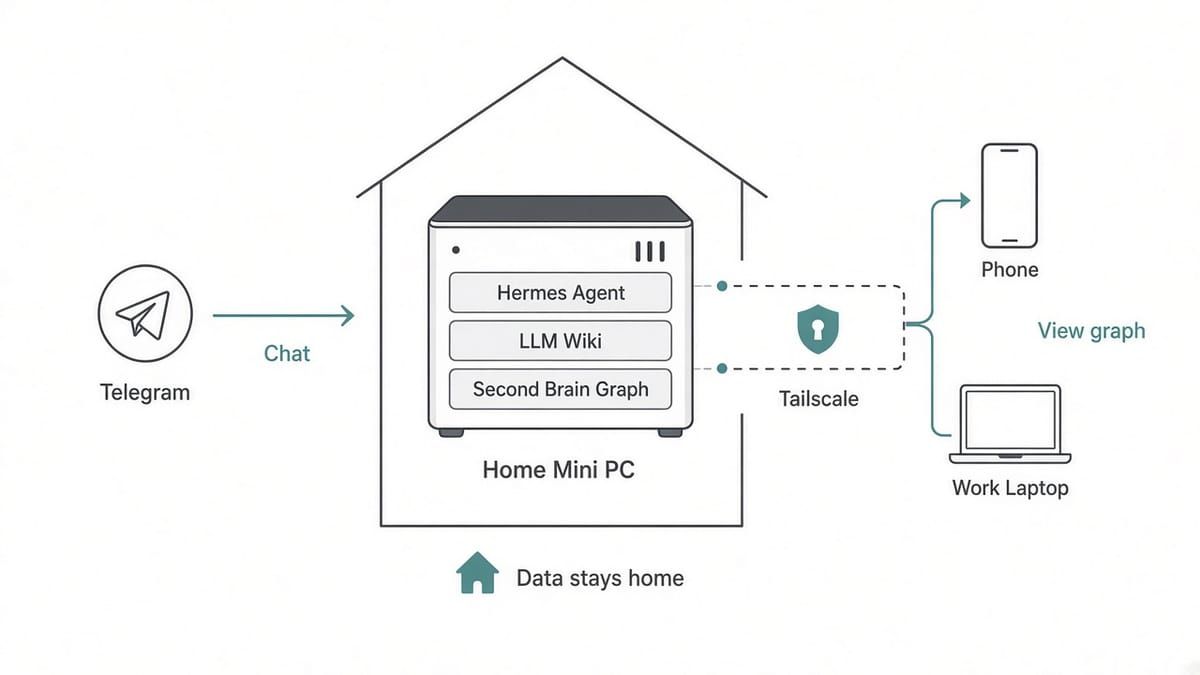
My Hermes runs on a small computer at home. The LLM wiki and the graph service both live on that machine. The data does not leave the house.
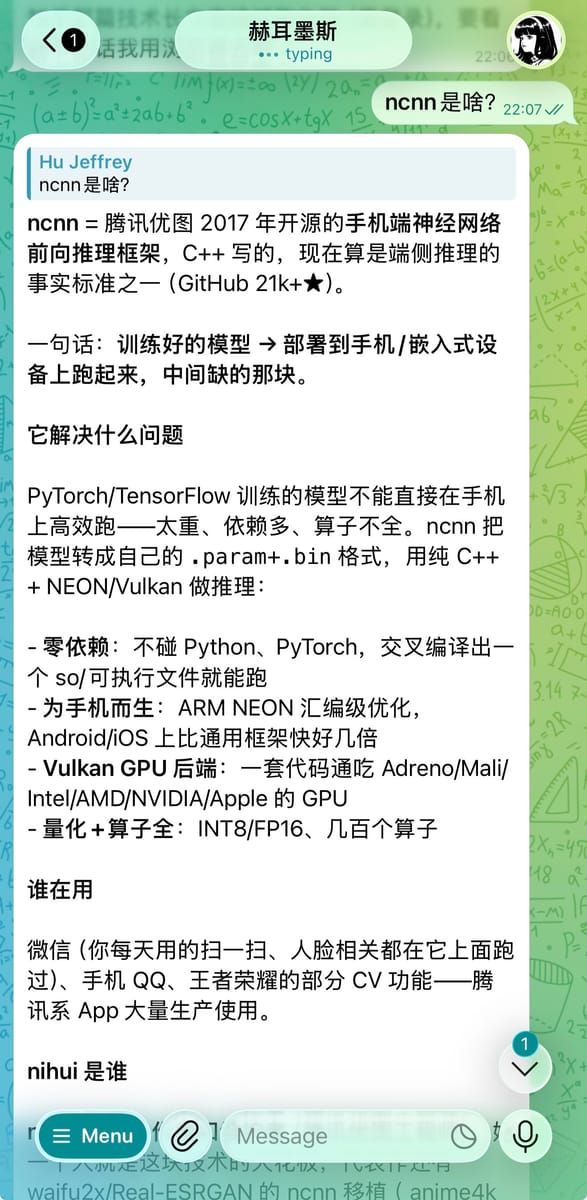
Day to day I talk to Hermes on Telegram. Walking, commuting, before sleep — whatever comes to mind, I send it. Ask "what is ncnn?" in passing, and it just explains it.
When a chat is worth keeping, I have it turn the conversation into a wiki page. That hands-on Qwen-Image local deployment came about this way: it wrote the environment, the steps, the three pitfalls, and the speed numbers under ~/wiki/edge-ai/, and updated the index and the log along the way.
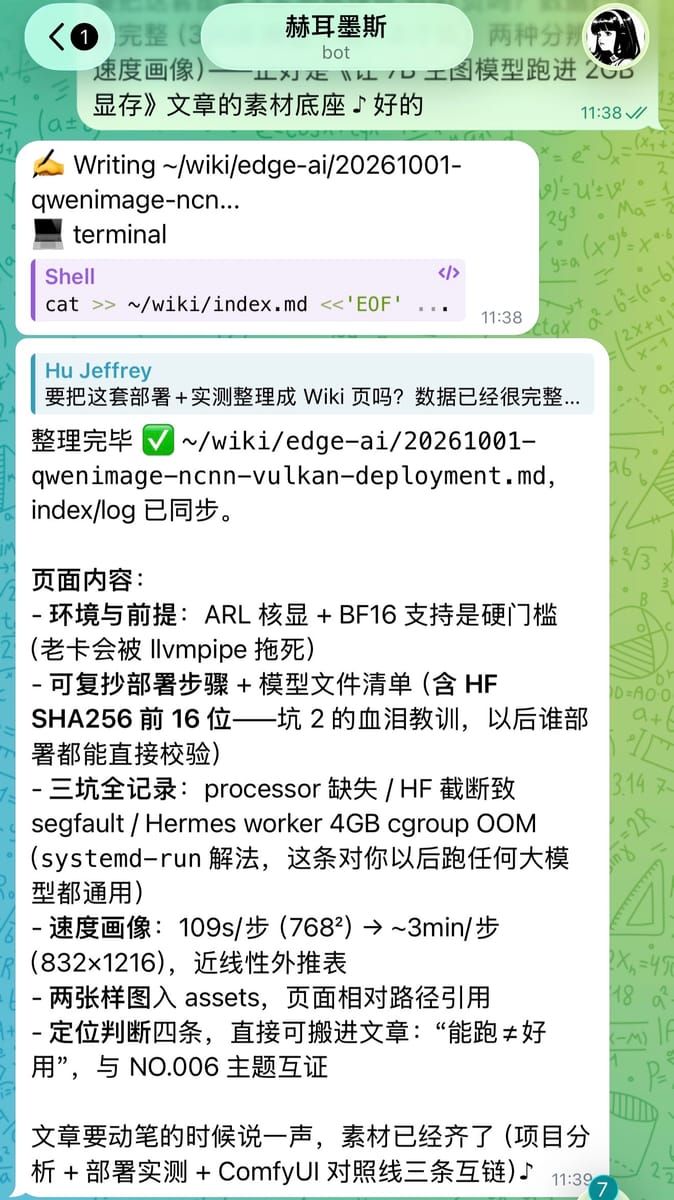
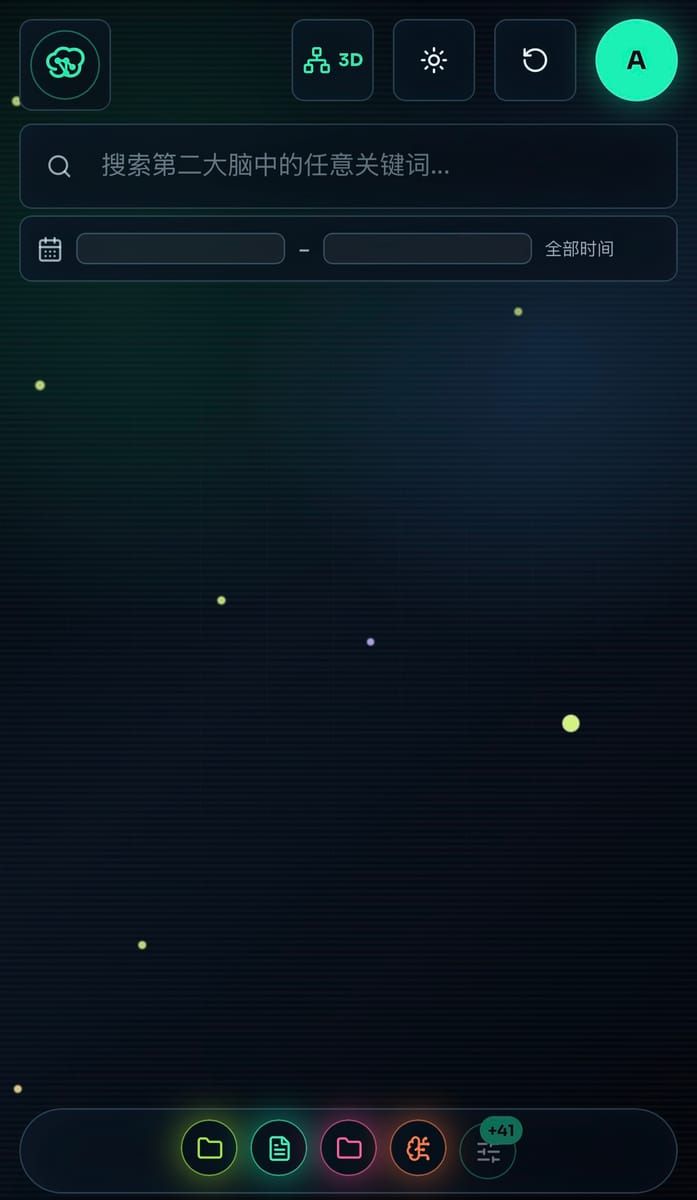
When I look at the graph, I use my phone or my work computer. Tailscale sits in the middle. The small computer at home, my phone, and my work computer are on the same private network. People outside can't see it. Wherever I am, I can open the graph and keep digging into a node.
(The picture above is what it looks like opened on a phone.)
I did not put the graph on the public internet, and I did not open any ports. Memory is private. I don't want to hang it out there just to make access convenient. Tailscale doesn't need a domain name or an open port. Only my own devices can reach it, which is exactly the fit.
So the split is this: Telegram handles input, Tailscale handles access, and the data stays at home.
In the previous essay I wrote that local and cloud end up mixed together. This is a very small example. The agent lives at home, and I can use it wherever I am.
Once You Can See It, the Problems Show Up
After the graph was drawn, the first feeling was relief. The second was: so this is how messy it is.
Some nodes are actually about the same thing, just said a different way, and got filed as two pages. Some concepts went stale a long time ago. The project is finished, and I've changed my mind, but the node is still on the graph, linked to the others. There are also isolated points with no edges at all. I don't know why they were written down in the first place.
These problems were always there. I just couldn't see them before.
At the end of "One Person, One Agent" I said that a long-lived agent's memory can't keep growing without limit. It has to be able to update, retire, and archive. At the time that was still an idea. Now it is sitting in front of me. Which ones should be merged, which should be deleted, which should go into an archive? Can the agent judge that itself? What if the judgment is wrong?
That is what I want to figure out next.
In Closing
I've switched models several times, and I will switch again. Telegram and Tailscale are just the tools that happen to be handy right now.
But this graph is mine. It grows on that small computer at home, and it holds what I've talked about over these six months.
A memory can be managed only once you can see it.
References
-
Andrej Karpathy — LLM Wiki (having an LLM maintain a personal knowledge base; the original gist)
https://gist.github.com/karpathy/442a6bf555914893e9891c11519de94f -
OpenKnowledge — a breakdown of the Karpathy LLM wiki workflow
https://openknowledge.ai/docs/workflows/karpathy-llm-wiki -
Tailscale — What is Tailscale?
https://tailscale.com/docs/concepts/what-is-tailscale -
second-brain-graph
https://github.com/zhiwehu/second-brain-graph -
second-brain
https://github.com/zhiwehu/second-brain -
AITi NO.008, "One Person, One Agent"
https://www.getaiti.com/articles/008-one-agent-per-person/
Subscribe · 订阅
Scan to follow on WeChat
Essays update weekly and go live on the website and on the WeChat account “AITi智能” at the same time. Scan the code to get them the moment they’re out.
- 01 Search “AITi智能” in WeChat
- 02 Follow it and add it to your favourites
- 03 Weekly updates — see you there

Scan to follow · one essay a week